Scan, issue, done: barcodes and QR codes for your school library and students
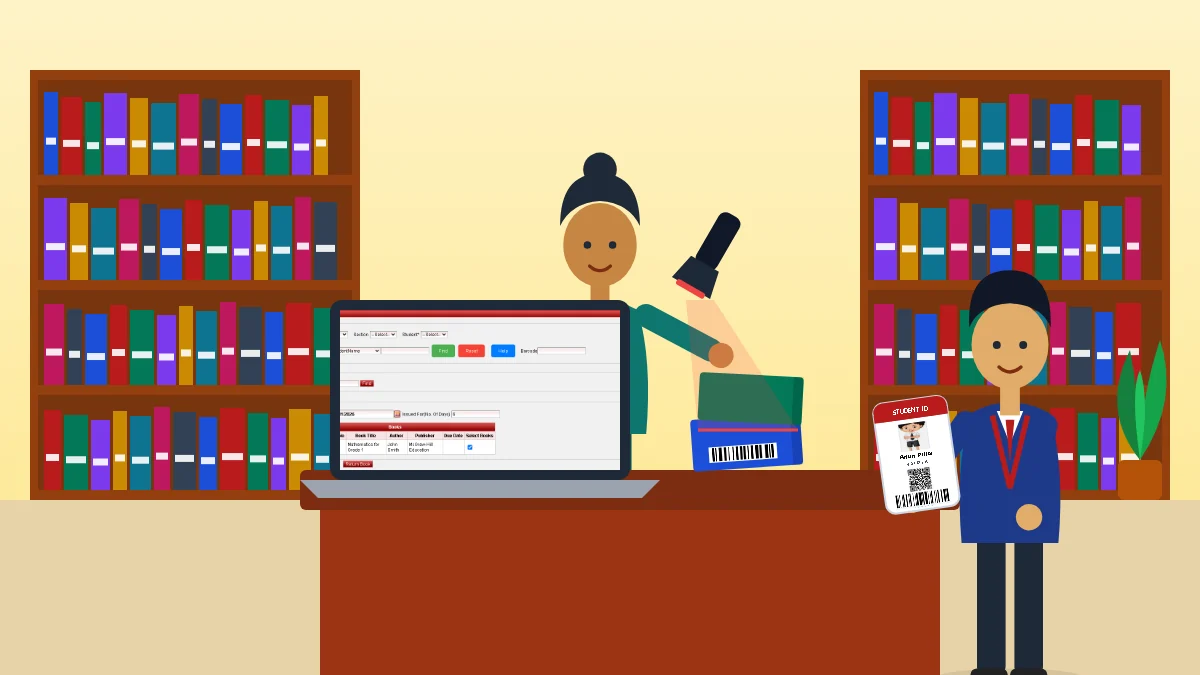
Ask any school librarian about issue day and you will hear the same story: a queue at the desk, accession numbers read out loud, and a register that never quite matches the shelves. The new SchoolAdminCE release, 2026.0.1 AI+, turns that into one beep. Every book and every student gets a barcode and a QR code, the labels come out of your own printer, and an inexpensive USB scanner does the rest.
Here is what changes for the people who use it every day.
For the librarian: label once, scan forever
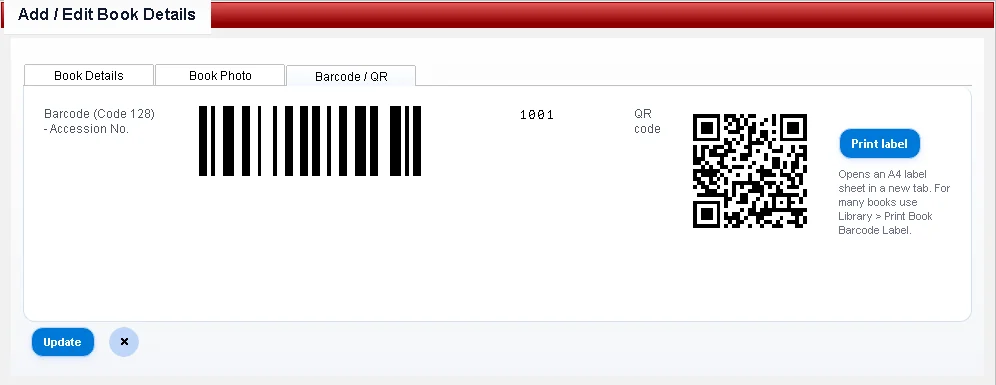
Every book now has a Code 128 barcode, made from its accession number, and a QR code holding the book ID, accession number and title. You will find both on the book’s Barcode / QR tab, with a Print label button right next to them.
Labelling a whole library is just as quick. Under Library Master → Print Book Barcode Label, choose one book, a range of accession numbers, a category or every book, and pick a sheet:
- 24 labels per A4 page (3 × 8, 70 × 37 mm), or
- 40 labels per A4 page (4 × 10, 52.5 × 29.7 mm), the common sticker sheets sold by any stationery shop.
Need two labels for each book, one inside the cover and one on the spine? Set the number of copies. Used half a sheet last week? Tell it how many labels to skip and it starts on the first empty one.
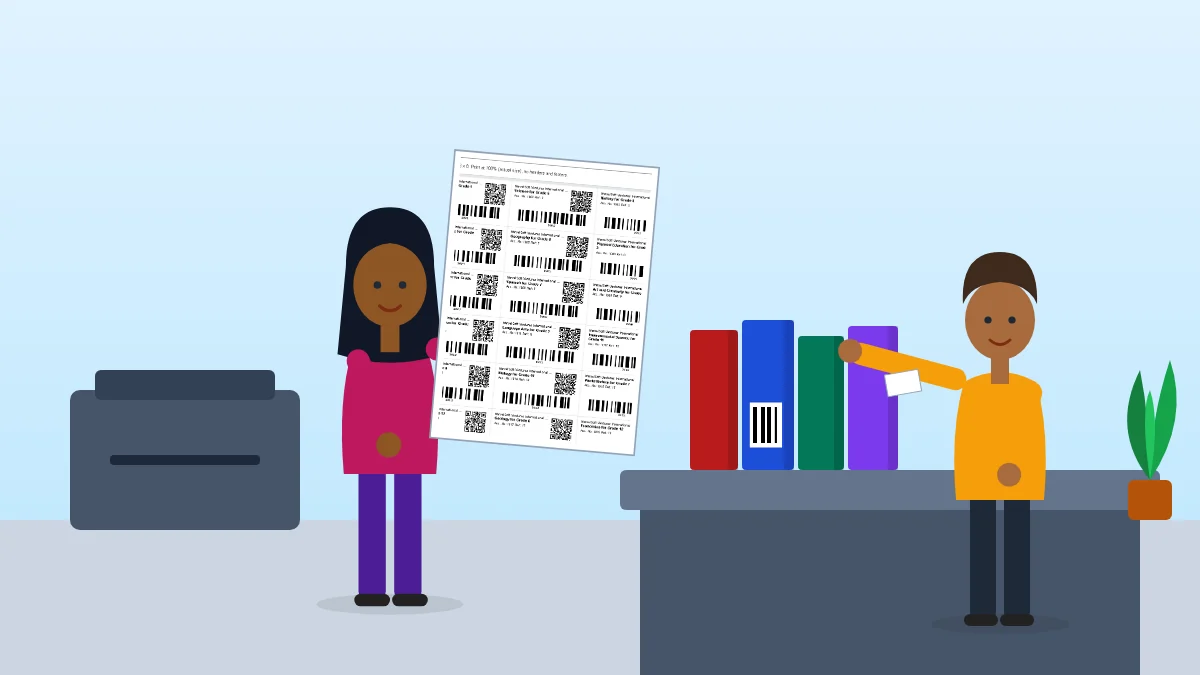
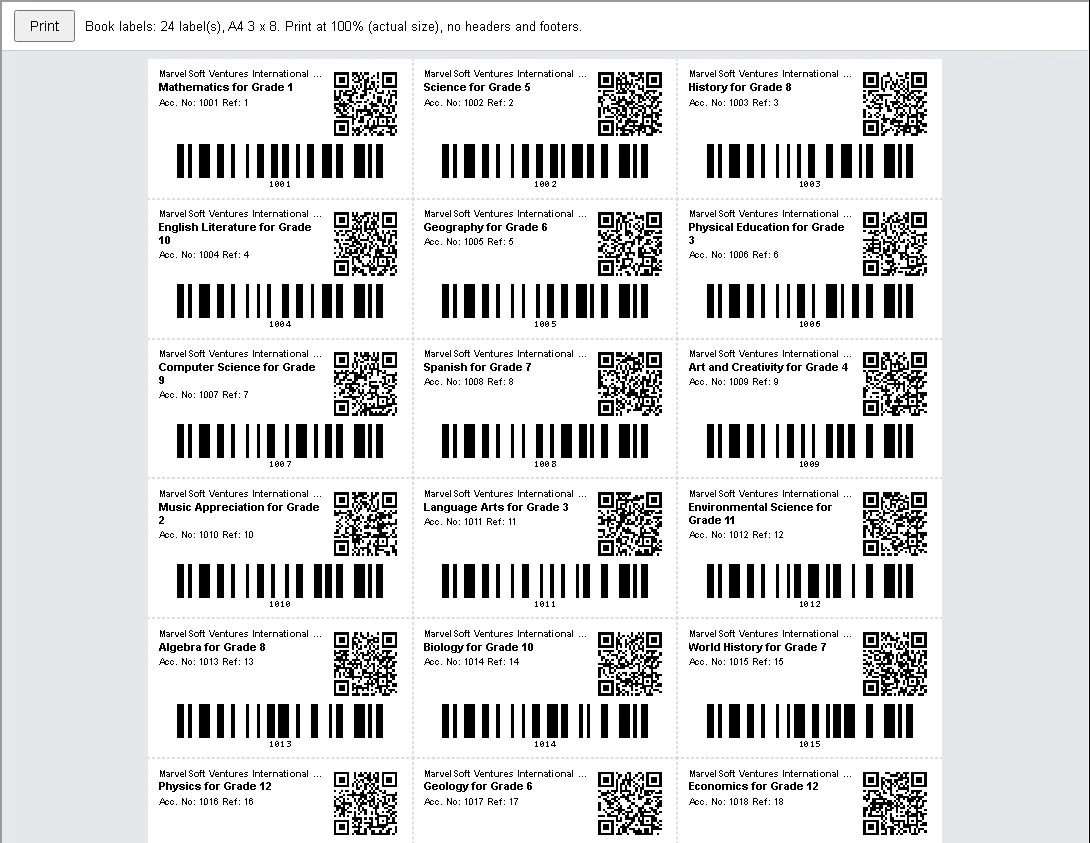
Value: no barcode fonts to install, no separate labelling software and no internet needed. SchoolAdmin makes the codes itself.
At the issue desk: one beep instead of a search
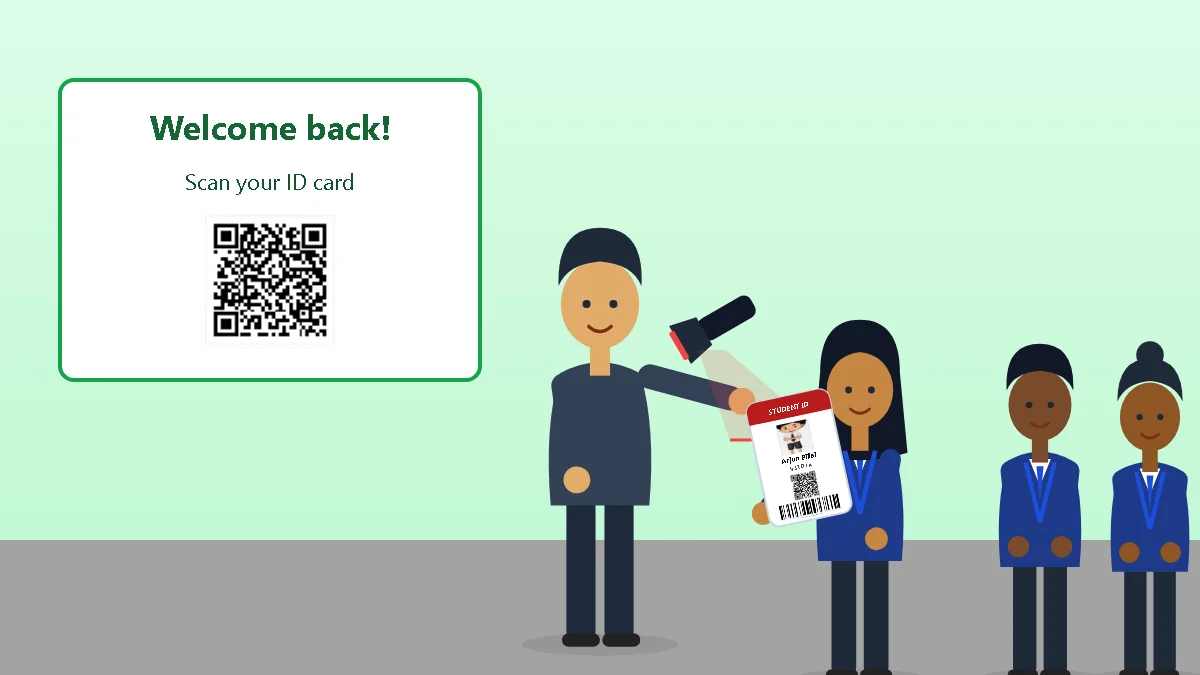
Plug in any USB barcode or QR scanner; it works like a keyboard, so there is nothing to set up. In Library Management, scan the student’s ID card and the book’s label. The book appears in the list, already ticked, and one click on Issue Book or Return Book finishes the job.
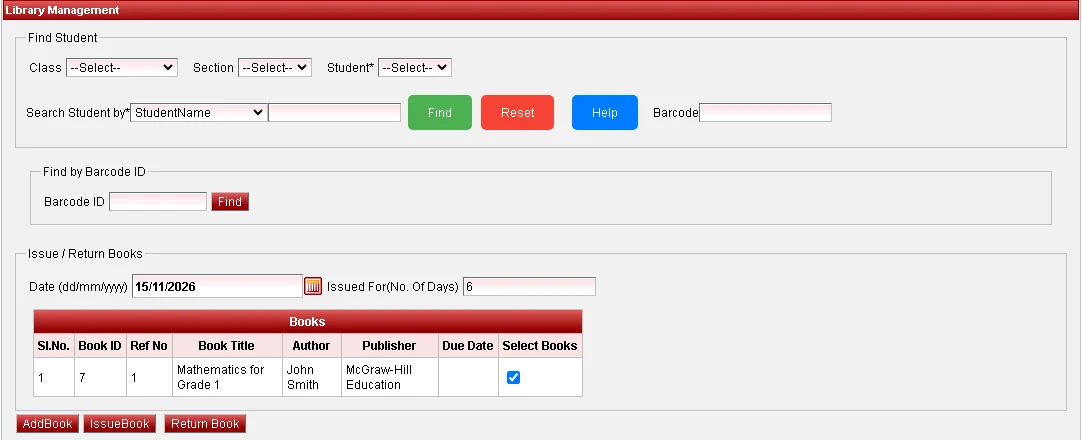
Value: shorter queues at lunch break, no mistyped accession numbers, and a register that matches the shelves.
For students: an ID card that does more than hang on a lanyard
Each student now has a barcode (the admission number) and a QR code. They show up on the student screen right under the photo, and ID card templates can print them next to the photo, so the card a student already carries becomes their library card too.
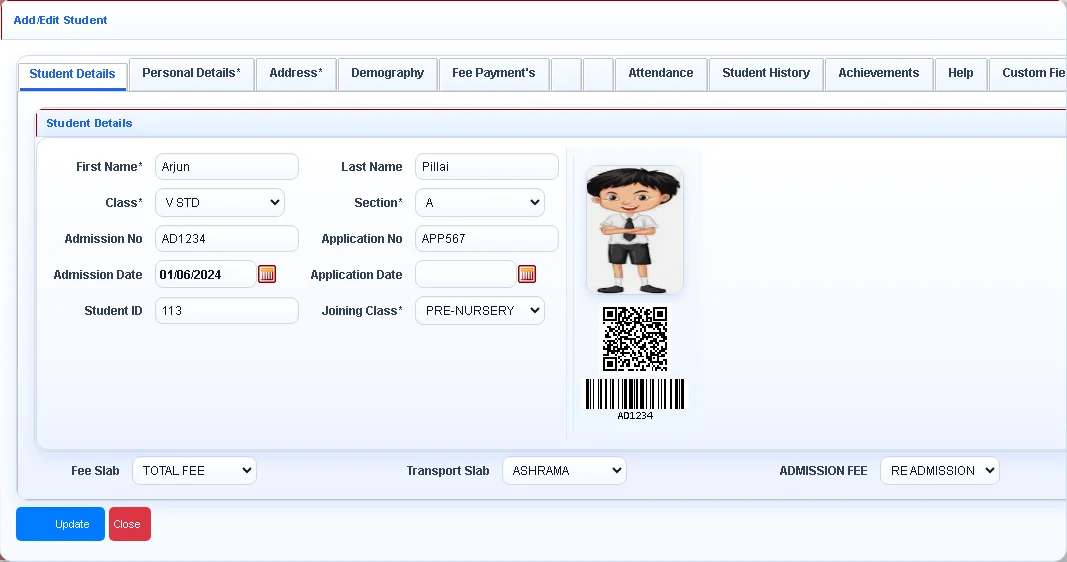
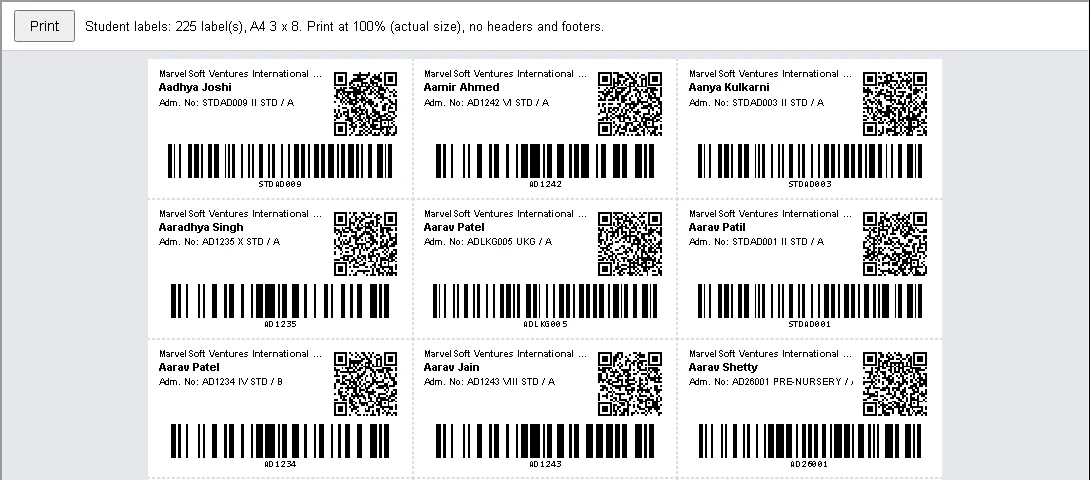
Scan a student’s card into the Barcode box of the student search and SchoolAdmin finds the right student at once, even when two children share a name. For new cards, stickers or registers, Other Reports → Students Barcode Report prints labels for a class and section, a single student or the whole school on the same A4 sheets.
For the office: emails that look the way you designed them
The email template editor has been rebuilt. You get fonts (Indian-language fonts included), sizes, colours, tables, links, pictures by web address and a source view, and text pasted from Word keeps its formatting. An Insert field menu adds the student’s name, the school name and other fields, filled in when each email goes out.
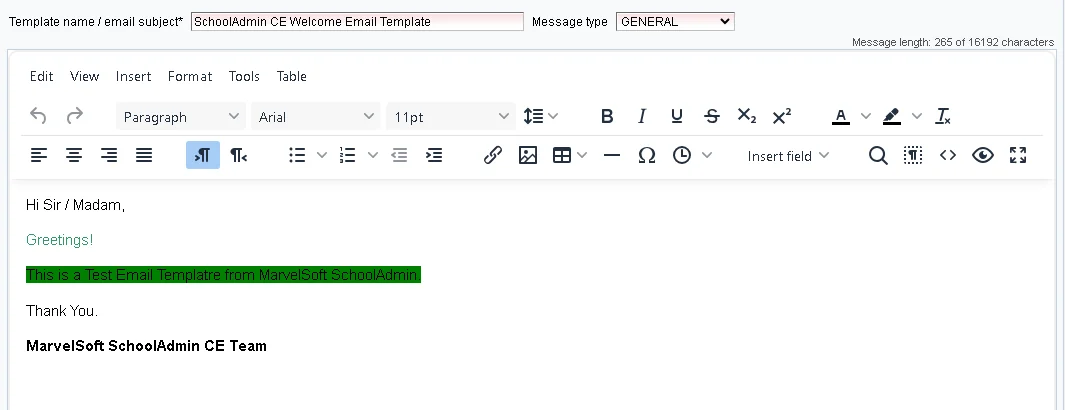
What you design is what parents receive: fonts and colours survive all the way to the inbox, and ₹, Hindi and Kannada text arrive intact instead of as question marks. Unsafe content such as scripts is removed when a template is saved, so a template can never break the screen.
Buying the full licence, from inside SchoolAdmin
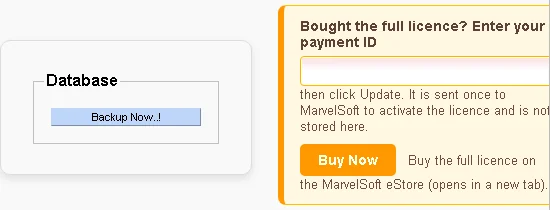
Running the free edition and ready for more students? The School page under Settings now has a Buy Now button that opens the MarvelSoft eStore. After paying, enter the payment ID from your receipt in the box above it and click Update; the licence is activated without waiting for us.
Getting ready
- Buy label sheets: A4 sticker sheets with 24 or 40 labels per page.
- Buy a scanner: any USB scanner that reads Code 128 barcodes; choose one that also reads QR codes to use the student QR.
- Print and stick: start with the books that go out most, then work through the rest by category.
- Update your ID card template: add the barcode and QR code next to the photo for the next batch of cards.
These features are in SchoolAdminCE 2026.0.1 AI+, released on 16 November 2026: get it from the free download page. See the full list of changes in the release notes.